Published 2026-11-09 · Updated 2026-11-10
Uptime Kuma on a VPS: SSL Expiry and Telegram Alerts
Short answer: run Uptime Kuma 2 in Docker with a named volume and its port published on 127.0.0.1 only, create the admin account through an SSH tunnel and turn on 2FA, then put nginx with HTTPS and the WebSocket headers in front. Add HTTPS keyword checks, TCP port checks and certificate expiry alerts for each domain, connect a Telegram bot, back up the data volume, and watch Kuma itself from a second place.
Uptime Kuma is a free, open source, self-hosted dashboard that checks whether your sites and ports still answer and alerts you when they do not. It belongs to the self-hosted external security monitoring series and follows Nuclei vs reNgine vs Uptime Kuma. Commands target Ubuntu or Debian with Docker.
Only scan what you own. Point Kuma only at domains and servers that belong to you or that you are allowed to test. Every check here is an ordinary request or connection to your own assets.
In this article
What Uptime Kuma is and what it is not Step 1: Install it with Docker on 127.0.0.1 Step 2: Create the admin account safely and turn on 2FA Step 3: Put nginx and HTTPS in front Step 4: Monitors for two or three domains Step 5: Send alerts to Telegram Monitor types compared, and what Cloudflare changes Step 6: Back up, update and watch the watcher What to do next, how we checked this and sources Frequently asked questionsQuick win (30 minutes)
- Run
sudo ss -tlnp | grep 3001ordocker psand check that Kuma is on127.0.0.1, not0.0.0.0. See Step 1. - From your own computer run
curl -m 5 -I http://203.0.113.10:3001. It must fail. - Write down, for each domain, one text string that is always on the home page, and the ports you expect to be open.
- Create a Telegram bot with BotFather and keep its token in a password manager. See Step 5.
- Decide where a second check of Kuma itself will run. See Step 6.
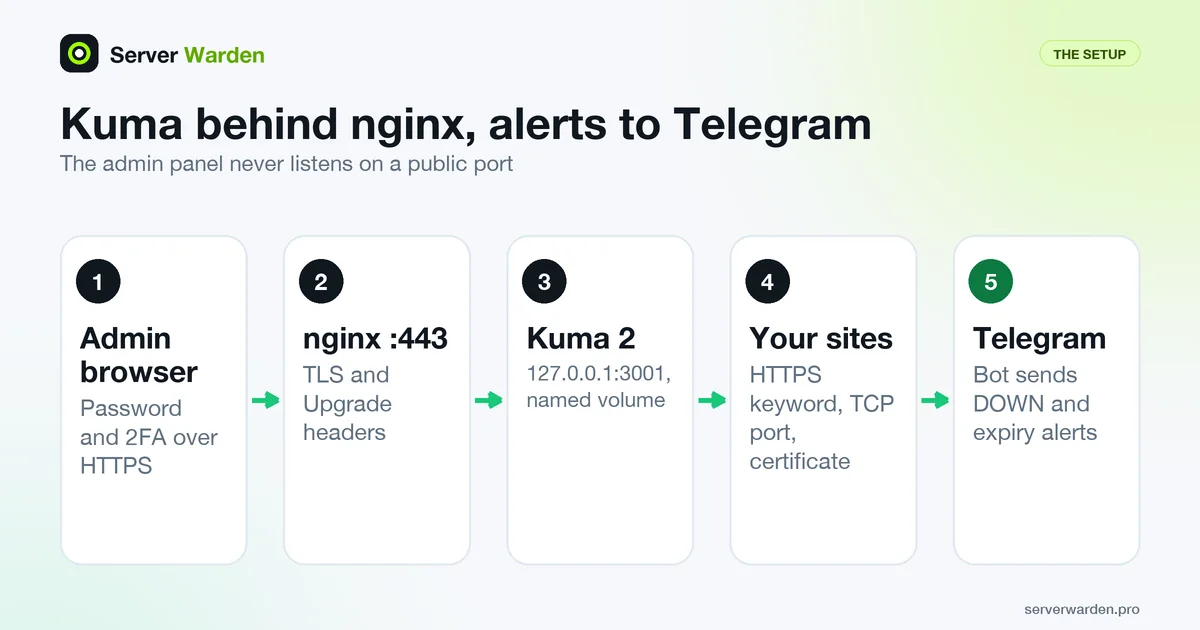
What Uptime Kuma is and what it is not
According to the project README, Kuma monitors HTTP(s), TCP, HTTP(s) keyword, JSON query, WebSocket, ping, DNS, push and Docker container targets. It sends notifications through Telegram and more than 90 other services, shows certificate info and supports 2FA (two-factor authentication, a second code on top of the password). It is a smoke alarm: it tells you that something stopped answering. It is not:
- A vulnerability scanner. Nothing in the README describes one. For known weak spots use scheduled Nuclei scans.
- A hunter of leaked files such as
.env, unless you monitor that exact address (how those leaks happen). - A port scanner. A TCP monitor checks the one port you typed, so a new unexpected port is invisible to it. That is the job of an outside port scan on a schedule (port scanning means asking a host which ports accept connections).
- A finder of forgotten subdomains.
A monitor on the server it watches also goes silent when that server dies. A separate small machine is better; this guide uses the same VPS for simplicity and covers the risk in Step 6.
Step 1: Install it with Docker on 127.0.0.1
Docker is assumed (see Docker host security). The README recommends the image tag louislam/uptime-kuma:2. The wiki's Docker Tags page calls tag 2 recommended and latest deprecated (it still points at version 1), and version 3 exists only as separate beta tags. So this guide stays on 2. Run the README command with its localhost variant:
docker run -d --restart=unless-stopped -p 127.0.0.1:3001:3001 -v uptime-kuma:/app/data --name uptime-kuma louislam/uptime-kuma:2-p 127.0.0.1:3001:3001 publishes the port on the loopback address only, -v uptime-kuma:/app/data keeps all data in a named volume that survives container removal, and --restart=unless-stopped (used on the wiki's install page) brings Kuma back after a reboot. The README warns that NFS is not supported, so use a local volume or directory.
Do not skip 127.0.0.1. Docker's documentation on port publishing says a published port is reachable from the outside world unless you give a host address, and its page on packet filtering and firewalls says published ports bypass ufw rules. A ufw rule alone will not hide a plain -p 3001:3001. Check it on the server:
docker ps --filter name=uptime-kuma --format '{{.Status}} {{.Ports}}'
curl -sI http://127.0.0.1:3001/ | head -3
We ran this and saw Up 25 seconds (healthy) 127.0.0.1:3001->3001/tcp and a 302 Found redirect. On the machine's own network address the connection was refused. From another computer, curl -m 5 -I http://203.0.113.10:3001 must fail too. The server firewall is covered in the Linux firewall guide.
Step 2: Create the admin account safely and turn on 2FA
On a fresh volume, Kuma 2.5.9 first asks which database to use (Embedded MariaDB, MariaDB/MySQL or SQLite), then shows "Create your admin account". Whoever reaches that page first creates the account. A second test container with the port on all interfaces answered from the machine's network address with a redirect to setup, so an unfinished Kuma on a public port is a race you can lose.
That is why Step 1 binds to loopback and nginx comes later. Reach the setup page through an SSH tunnel (-L forwards a local port to the server and -N runs no remote command, per the ssh manual). On your own computer:
ssh -N -L 3001:127.0.0.1:3001 -l YOUR_USER 203.0.113.10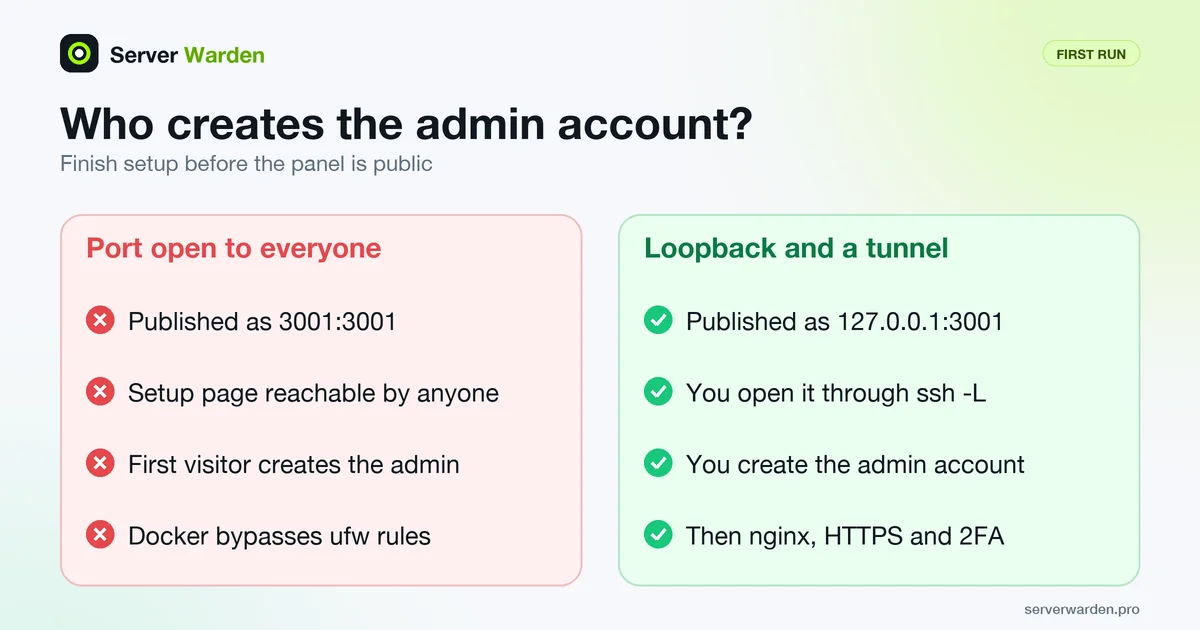
Leave it running, open http://127.0.0.1:3001, choose SQLite (our choice for a few monitors: one file, kuma.db, in the volume) and create the account with a long unique password. The tunnel assumes SSH keys and a normal user, as in the SSH hardening guide.
Then turn on two-factor authentication. The README lists 2FA, and Kuma's source verifies the code with TOTP (time-based codes from an authenticator app). In 2.5.9 it is Settings, Security, "2FA Settings". Two cautions:
- Save the authenticator secret. The wiki describes resetting a password from the command line (
npm run reset-passwordin the container), but we did not test whether it also clears 2FA. - Leave "Disable Auth" alone. Its help text says it is for setups where another login, such as Cloudflare Access or Authelia, sits in front.
Step 3: Put nginx and HTTPS in front
The wiki's Reverse Proxy page recommends nginx or Apache with HTTPS in front of Kuma. A reverse proxy takes public requests and passes them to a service on the loopback address. Kuma needs two extra headers, Upgrade and Connection, because it uses WebSocket (a long-lived two-way connection for live updates), and it does not support a subdirectory such as /uptimekuma, so use a subdomain. Point an A record for kuma.example.com at your server and create /etc/nginx/conf.d/kuma.conf, the wiki's "Without SSL" block plus forwarding headers:
server {
    listen 80;
    listen [::]:80;
    server_name kuma.example.com;

    location / {
        proxy_pass         http://127.0.0.1:3001/;
        proxy_http_version 1.1;
        proxy_set_header   Host $host;
        proxy_set_header   X-Real-IP $remote_addr;
        proxy_set_header   X-Forwarded-For $proxy_add_x_forwarded_for;
        proxy_set_header   Upgrade $http_upgrade;
        proxy_set_header   Connection "upgrade";
    }
}
Keep the Host header: Kuma checks that the WebSocket origin matches the server hostname (UPTIME_KUMA_WS_ORIGIN_CHECK on the environment variables page). Test the file first:
sudo nginx -t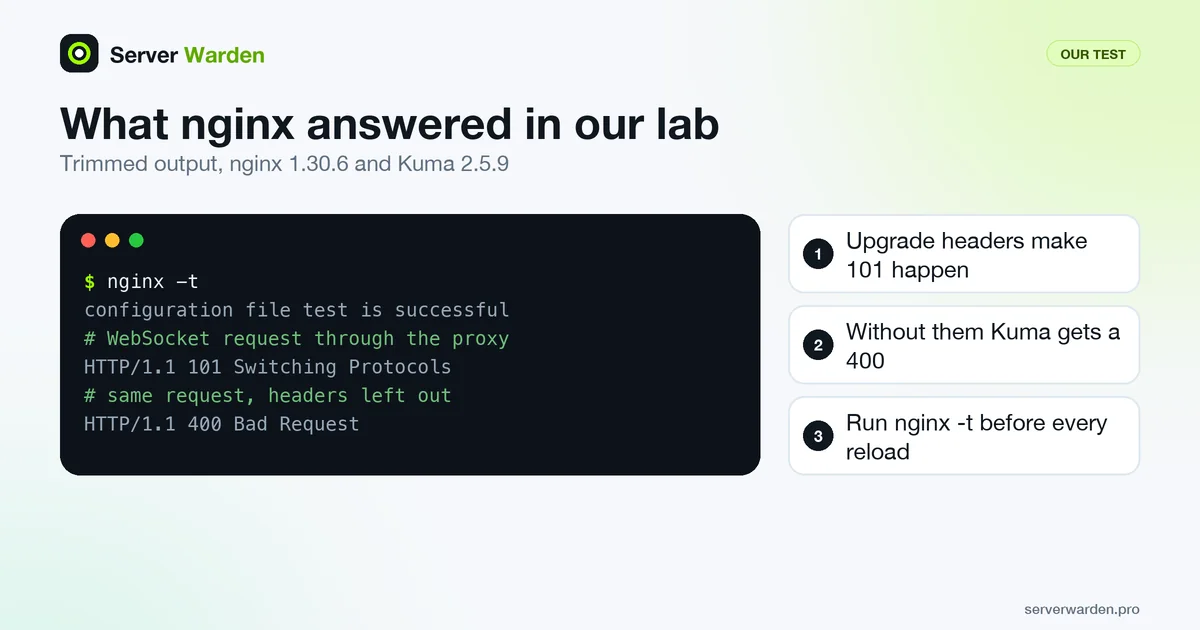
Reload nginx, then get a certificate. The wiki says to start with this HTTP-only block and let Certbot add HTTPS and the redirect. Install Certbot as in the secure deployment guide, run sudo certbot --nginx -d kuma.example.com and confirm sudo certbot renew --dry-run passes (see Let's Encrypt 45-day certificates). We also ran nginx -t on the HTTPS form of this block, with a throwaway self-signed certificate. The wiki's own example writes listen 443 ssl http2;; the nginx documentation says the standalone http2 on; directive appeared in 1.25.1, and on nginx 1.30.6 the old form passed with a deprecation warning.
In Kuma set Settings, Reverse Proxy, "Trust Proxy" to Yes; the wiki says this shows real client addresses in the logs when Kuma is reachable only through the proxy. Keep 3001 closed. To confirm WebSocket works, send a handshake from your computer: curl -s -i --http1.1 -N --max-time 4 -H 'Connection: Upgrade' -H 'Upgrade: websocket' -H 'Sec-WebSocket-Version: 13' -H 'Sec-WebSocket-Key: dGhlIHNhbXBsZSBub25jZQ==' 'https://kuma.example.com/socket.io/?EIO=4&transport=websocket'. In our lab it printed HTTP/1.1 101 Switching Protocols with the two headers and 400 Bad Request without them. More hardening: nginx security best practices.
Step 4: Monitors for two or three domains
Say you run example.com and example.org on 203.0.113.10. Log in at your HTTPS address and add monitors. Names below are Kuma 2.5.9 labels from its source and may change:
- One HTTP(s) keyword monitor per domain. Use
https://example.com/and a keyword that is always on the page but not on an error page, such as the site name in the footer. Kuma's help text says the search covers the plain HTML or JSON response and is case-sensitive. This catches a dead site and a page that answers 200 with the wrong content. - Tick "Certificate Expiry Notification" on each. In the source it is off by default and disabled if you ignore TLS errors. The warning days are global (Settings, Notifications, "TLS Certificate Expiry", defaults 7, 14 and 21), and the alert is sent only if the monitor has a notification attached.
- "TCP Port" monitors for expected services, such as 22 for SSH and 443, using the server's IP and not the domain name (see the Cloudflare notes below).
- A keyword monitor for Kuma's own address, so its certificate is watched too.
- A "Push" monitor per scheduled job, described next.
To avoid false alarms, change these from the 2.5.9 defaults (interval 60 seconds, retries 0, resend 0):
- Retries: 2. Kuma's help text calls them the maximum before the service is marked down and a notification is sent. In the source, up to pending does not notify, pending to down does. With a 60 second retry interval a blip must fail three checks in a row, about three minutes, before you are alerted.
- Interval: leave 60 seconds. Faster checks add noise, not safety.
- Resend if down X times: 0 gives one message per outage; set a number for reminders.
- Certificate days: keep one number below your renewal window, such as 7, so an alert means renewal failed.
Heartbeat monitors for cron jobs. A Push monitor reverses the direction: your job calls Kuma, and Kuma alerts when the call does not arrive. Create a "Push" monitor, copy its address and set the interval a little longer than the job's schedule. In the source, a push monitor goes down when no heartbeat arrives within the interval plus one second. The address is /api/push/TOKEN with optional status, msg and ping parameters (it answered our fake token with Monitor not found or not active). For a nightly backup use about 25 hours:
30 2 * * * /usr/local/bin/backup.sh && curl -fsS -m 10 -o /dev/null "https://kuma.example.com/api/push/PUSH_TOKEN?status=up&msg=OK"The && means the call happens only if the backup succeeded, and -f makes curl fail on an HTTP error. Treat the token like a password. The same trick covers a scheduled Nuclei run: if the scan stops, Kuma tells you.

A caution: a check that starts on the monitored machine can pass even when the outside world cannot connect (we did not test every case). Use Kuma to learn that a service died, and an outside scan to learn what the internet sees.
Step 5: Send alerts to Telegram
Kuma calls the Telegram Bot API from your server, so outgoing HTTPS must be allowed. The Kuma form even has an optional server address field for networks where Telegram is blocked. Steps, with fake values only:
- Create the bot. The Telegram bot documentation says to message BotFather to register the bot and receive its token, which looks like
123456789:EXAMPLE_NOT_A_REAL_TOKEN. Store it securely: everyone who has it has full control of the bot. - Send your bot a message. Open a private chat with it and write anything. Start with a private chat, because bots in groups run in privacy mode by default and see only commands and replies, per Telegram's bot features page.
- Find the chat ID. Kuma shows an "Auto Get" button once a token is entered. By hand, the Bot API method
getUpdatesreturns incoming messages; the chat ID is theidof thechatobject, updates are kept at most 24 hours, and the method fails while a webhook is set. Type the token without leaving it in shell history:
read -rs BOT_TOKEN
curl -s "https://api.telegram.org/bot${BOT_TOKEN}/getUpdates" | python3 -m json.tool | grep -A1 '"chat"'
The output has "chat": { followed by "id": 111111111 (we tested this filter on a sample response, not a live one).
- Add the notification in Kuma. Open Settings, Notifications, "Set Up Notification", choose Telegram, paste the Bot Token and Chat ID and save. The Kuma source posts to the Bot API
sendMessagemethod. "Default enabled" attaches it to new monitors and "Apply on all existing monitors" to the current ones. - Check each monitor. A notification not attached to a monitor sends nothing, including certificate warnings.
We did not send a real Telegram message. Our lab had no real bot token, so this step is described from the Kuma and Telegram documentation and Kuma's source code. The token is stored in Kuma's database, so your backups contain it: keep them private.
Want a second pair of eyes on your server?
A free, read-only check shows what is exposed on your server and what to fix first.
Get your free server check Talk to a security engineerMonitor types compared, and what Cloudflare changes
| Monitor type | What it catches | What it misses |
|---|---|---|
| HTTP(s) status | Site down, timeouts, error codes | A 200 page with wrong content |
| HTTP(s) keyword | Wrong or blank page behind a 200 | Anything not on that page |
| Certificate expiry | A certificate near its end date | Other TLS problems, other names |
| TCP port | A listed service stopped answering | Ports you did not list |
| Ping | Host unreachable | Whether any service works |
| Push (heartbeat) | A cron job that did not run | A job that ran but did the wrong thing |
For exposed files, new ports and known weak spots add the scanners mentioned above.
With Cloudflare in front, a monitor on your proxied domain shows what visitors see, which is right to alert on. Two consequences follow. A certificate check on a proxied name reads the certificate Cloudflare presents to visitors, which its edge certificates page describes as securing the connection between visitors and Cloudflare, and Cloudflare says it handles issuance and renewal of Universal SSL certificates itself. So your origin's certificate is not what that monitor watches. And a TCP check on the domain name tests Cloudflare, not your server, so use the server's IP for port checks.
The Kuma wiki's Cloudflare side note says Cloudflare may block Kuma's requests and suggests allowing your Kuma address or bypassing the Browser Integrity Check for it. We did not test this on a real Cloudflare account. Checking the origin needs a separate path: if you lock the origin down to Cloudflare, a direct check from Kuma's address is refused unless you allow it, and the test that matters is the reverse one: the origin must not answer when asked directly.
Step 6: Back up, update and watch the watcher
Back up the data volume. Monitors, history and notification settings all live in it. The directory holds kuma.db plus write-ahead log files, and the wiki's upgrade notes say to stop the container and then back up the data directory. We stopped it, archived the volume with a throwaway Ubuntu 24.04 container, restarted Kuma, and restored the archive into a new volume where a new Kuma container started healthy:
sudo install -d -m 700 /var/backups/kuma
docker stop uptime-kuma
docker run --rm -v uptime-kuma:/data:ro -v /var/backups/kuma:/backup ubuntu:24.04 tar czf /backup/uptime-kuma-$(date +%F).tar.gz -C /data .
docker start uptime-kuma
Monitoring pauses for a few seconds. Copy the archive off the server as in the 3-2-1 backup strategy, and keep it private: it holds your Telegram token.
Update. The wiki's update page says to pull the image, remove the old container and start a new one with the same volume. Its sample publishes -p 3001:3001, so keep 127.0.0.1 in your own line:
docker pull louislam/uptime-kuma:2
docker stop uptime-kuma
docker rm uptime-kuma
docker run -d --restart=unless-stopped -p 127.0.0.1:3001:3001 -v uptime-kuma:/app/data --name uptime-kuma louislam/uptime-kuma:2
Back up first. The migration page for version 3 says the upgrade is in place with no downgrade path, so read it before you change the tag.
If Kuma itself dies, nobody tells you, because the alarm is gone. Options: run a second Kuma at another provider or at home that watches the first (and the reverse); point a free external uptime check at your Kuma address (we did not evaluate any such service); or push a heartbeat from a cron job on another machine and watch it. Pick one and test it by stopping Kuma on purpose.
What to do next, how we checked this and sources
- Add a scheduled outside port scan and a scheduled Nuclei run, and have both report to Kuma with a push monitor.
- Walk through the VPS security checklist, and read server monitoring and log analysis for what to watch inside the server.
If alerts keep arriving and you cannot tell which matter, or you suspect a breach, ask for help early. A free read-only check shows what the internet sees on your server.
How we checked this. On 9 November 2026 we ran louislam/uptime-kuma:2 (Uptime Kuma 2.5.9, Debian 12 base, Node.js 22) and nginx:stable-alpine (nginx 1.30.6) in Docker 29.0.1, plus ubuntu:24.04 for the backup. We confirmed the loopback port answered and the first-run setup page was served, ran nginx -t on both nginx blocks, tested the WebSocket headers, and did a backup and restore. We did not test real Telegram delivery, a Cloudflare account, certbot, 2FA setup, account recovery or a real certificate-expiry alert. Monitor and notification behaviour comes from reading the 2.5.9 source.
Sources: the Uptime Kuma README and wiki pages (Reverse Proxy, Docker Tags, migration to v3), the 2.5.9 labels and push route, the Telegram Bot API, Docker port publishing and Cloudflare edge certificates.
Frequently asked questions
How do I install Uptime Kuma on a VPS with Docker?
Run docker run -d --restart=unless-stopped -p 127.0.0.1:3001:3001 -v uptime-kuma:/app/data --name uptime-kuma louislam/uptime-kuma:2. This is the README command with the localhost variant, and it keeps the data in a named volume.
Is it safe to expose the Uptime Kuma port to the internet?
Not before you create the admin account, because whoever opens the setup page first creates it. Bind the port to 127.0.0.1, set up through an SSH tunnel, enable 2FA, and only then publish it through nginx with HTTPS.
Why does Uptime Kuma show "WebSocket connection failed" behind nginx?
Kuma uses WebSocket, so the proxy must pass the Upgrade and Connection headers and use HTTP 1.1, as the Kuma wiki explains. Add proxy_http_version 1.1 and the two proxy_set_header lines, run nginx -t and reload.
How do I get SSL certificate expiry alerts in Uptime Kuma?
On an HTTP(s) or keyword monitor tick the certificate expiry notification option and attach a notification to the monitor. The warning days are set once under Settings, Notifications, TLS Certificate Expiry, with defaults of 7, 14 and 21 days.
How do I find my Telegram chat ID for Uptime Kuma?
Send a message to your bot, then use the Auto Get button in Kuma or open the Bot API getUpdates method for your bot. The chat ID is the id inside the chat object. Updates are kept for at most 24 hours.
Does Uptime Kuma scan my server for vulnerabilities or open ports?
No. It checks only the targets you add, such as a URL or one TCP port, and tells you when they stop answering. Use a scanner such as Nuclei and a scheduled outside port scan for exposure.
What happens if the server running Uptime Kuma goes down?
You get no alert, because the monitor is down too. Run a second Kuma elsewhere that watches the first one, or point an external uptime check at it, and test it by stopping Kuma on purpose.
Not sure where your server stands?
Get a free, read-only security check, or talk to a security engineer about managed protection.
Get your free server check Talk to a security engineer