Published 2026-10-27 · Updated 2026-10-27
How to Deploy a Node or Python App on a VPS Securely
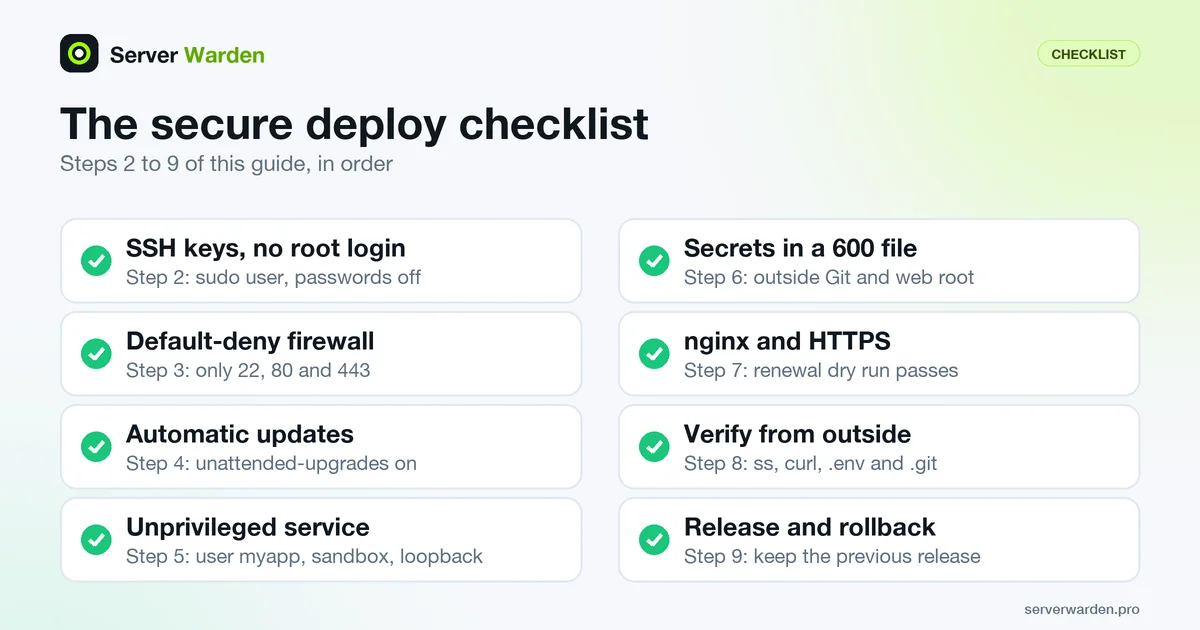
Short answer: to deploy a Node or Python app on a VPS securely, log in with an SSH key and a normal sudo user, turn on a default-deny firewall and automatic security updates, run the app as an unprivileged systemd service that listens only on 127.0.0.1, keep secrets in a file with 600 permissions, put nginx with HTTPS in front, and finish by testing from outside that only ports 22, 80 and 443 answer.
A VPS (virtual private server) is a rented Linux machine on the public internet that you administer yourself. This guide is the deployment chapter of the vibe coding security checklist. The order matters, because some steps can lock you out if done early. Commands target Ubuntu and Debian.
In this article
Step 1: What you need before you start Step 2: Create a sudo user and switch to SSH keys Step 3: Turn on the firewall Step 4: Install security updates automatically Step 5: Run the app as an unprivileged systemd service Step 6: Keep secrets in a protected environment file Step 7: Put nginx and HTTPS in front Step 8: Verify from outside Step 9: Redeploy and roll back safely Step 10: What to do next Frequently asked questionsQuick win (20 minutes)
- Run
sudo ss -tlnpand check that your app listens on127.0.0.1, not0.0.0.0. See Step 8. - Try
ssh -o PubkeyAuthentication=no -l deploy 203.0.113.10from your computer. A password login must be refused. - Run
sudo ufw status verboseand confirm only ports 22, 80 and 443 are allowed in. - Run
sudo ls -l /etc/myapp/myapp.envand check the mode is-rw-------. - Run
sudo certbot renew --dry-runand confirm it succeeds.
Step 1: What you need before you start
Collect these before you open a terminal:
- The server IP address (this guide uses the documentation address
203.0.113.10). - Root or sudo access to the new server.
- A domain (
example.comhere) with an A record pointing at that IP. - Your app in a Git repository with a lockfile (
package-lock.jsonorrequirements.txt), and a terminal on your computer.
Examples use the app name myapp and port 3000 (Node) or 8000 (Python). For the wider server baseline, see the VPS security checklist.
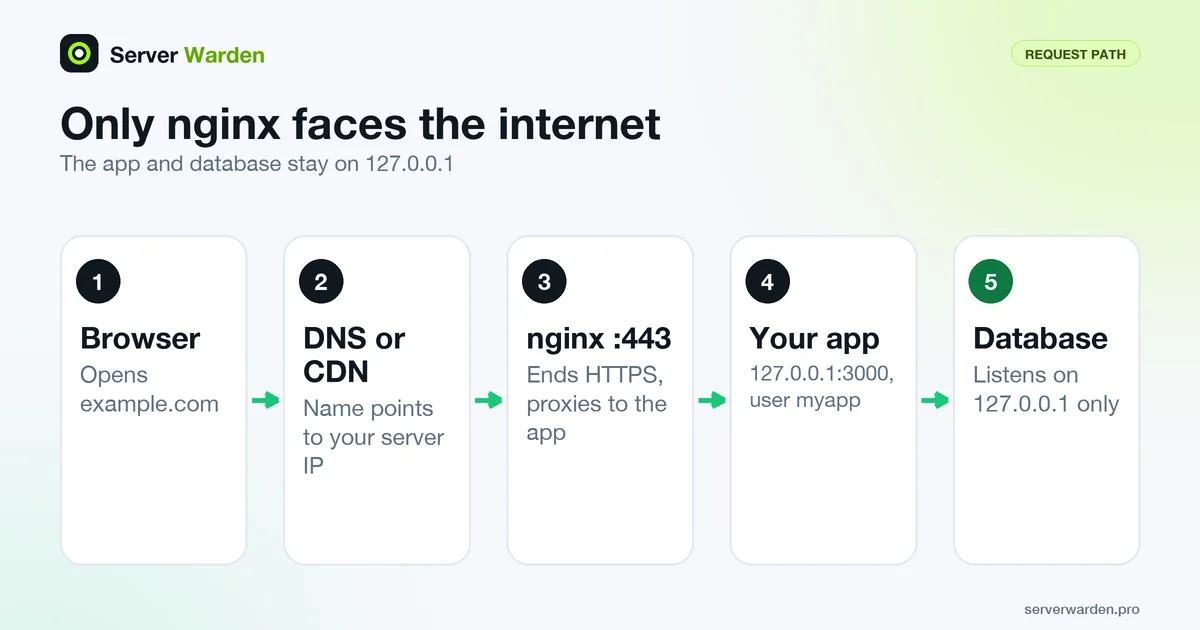
Two rules cover the whole guide. First, never run a development server in production. The Flask documentation says its built-in server is not designed to be particularly secure, stable or efficient, and the Next.js CLI reference describes next start, run after next build, as production mode. Second, only nginx faces the internet, and it talks to the app over the loopback address. A CDN such as Cloudflare in front only adds one hop before nginx.
Step 2: Create a sudo user and switch to SSH keys
Replace the root login from your provider with a normal user and an SSH key (full SSH hardening guide). Keep your first root session open until the final test passes. If you get locked out, see the lock-out recovery guide.
2a. Create the user. Log in as root with ssh -l root 203.0.113.10, then run (on Debian, install sudo first with apt install sudo):
adduser deploy
usermod -aG sudo deploy
adduser creates the account and asks for a password; usermod -aG sudo adds it to the sudo group.
2b. Create a key on your own computer and print the public half:
ssh-keygen -t ed25519
cat ~/.ssh/id_ed25519.pub
Back on the server, as root, create the key file and paste the one line you just printed:
install -d -m 700 -o deploy -g deploy /home/deploy/.ssh
install -m 600 -o deploy -g deploy /dev/null /home/deploy/.ssh/authorized_keys
nano /home/deploy/.ssh/authorized_keys
2c. Test in a second terminal. Run ssh -l deploy 203.0.113.10, then sudo -v to confirm sudo works. Do not continue until both work.
2d. Turn off root and password login. sshd_config(5) uses the first value found for each keyword and reads Include files in lexical order, so a file named 00- beats cloud-image defaults loaded later:
sudo tee /etc/ssh/sshd_config.d/00-hardening.conf >/dev/null <<'EOF'
PasswordAuthentication no
KbdInteractiveAuthentication no
PermitRootLogin no
EOF
sudo sshd -t && sudo systemctl reload ssh
Per sshd(8), sshd -t only validates the configuration, so a typo cannot take SSH down. Check the live values with sudo sshd -T | grep -Ei 'passwordauthentication|permitrootlogin'. If /etc/ssh/sshd_config has no Include line for sshd_config.d, put the three lines at its top instead.
2e. Test again from a third terminal, with the older sessions still open. ssh -l deploy 203.0.113.10 must work, while ssh -o PubkeyAuthentication=no -l deploy 203.0.113.10 and ssh -l root 203.0.113.10 must be refused. To undo it all, run sudo rm /etc/ssh/sshd_config.d/00-hardening.conf and reload ssh. More on the sudo group: sudo and least privilege.
Step 3: Turn on the firewall
A firewall decides which ports accept connections from outside. ufw ("uncomplicated firewall") is its simple front end on Ubuntu; on Debian run sudo apt install ufw. Allow SSH before you enable it, because the ufw manual warns that enabling may drop existing connections such as SSH.
sudo ufw default deny incoming
sudo ufw default allow outgoing
sudo ufw allow 22/tcp
sudo ufw allow 80/tcp
sudo ufw allow 443/tcp
sudo ufw enable
sudo ufw status verbose
If you moved SSH to another port, allow that port instead of 22. The app port (3000 or 8000) is deliberately absent: nginx reaches it locally. If your provider offers a network firewall, mirror the same three ports there. More background is in the Linux firewall guide.
Step 4: Install security updates automatically
Most break-ins use bugs that already have a fix. The Ubuntu Server documentation says unattended-upgrades is installed by default and applies security updates once a day. Check it, and install it on Debian:
sudo apt update
sudo apt install unattended-upgrades
sudo dpkg-reconfigure unattended-upgrades
cat /etc/apt/apt.conf.d/20auto-upgrades
sudo unattended-upgrade -v --dry-run
The cat output should show "1" for both Update-Package-Lists and Unattended-Upgrade, and the dry run changes nothing. The Debian wiki says the default installs security updates only. This covers the operating system only. Your npm or pip packages are yours to update; see the patch management guide.
Step 5: Run the app as an unprivileged systemd service
Never run the app as root or as your own login. Create a system user that cannot log in (per useradd(8), system accounts get no home directory unless asked). Then create a releases directory that deploy writes and the service user can only read:
sudo useradd --system --user-group --shell /usr/sbin/nologin myapp
sudo mkdir -p /srv/myapp/releases
sudo chown -R deploy:myapp /srv/myapp
sudo chmod 750 /srv/myapp
Install a current Node.js LTS (official downloads) or sudo apt install python3-venv, system-wide: a copy under /home/deploy would be invisible to the service, because the unit below hides /home. Then create the first release as deploy. Private repositories need a deploy key, which GitHub makes read-only by default.
REL=/srv/myapp/releases/$(date +%Y%m%d-%H%M%S)
git clone --depth 1 https://github.com/YOUR_ACCOUNT/YOUR_REPO.git "$REL"
cd "$REL" && npm ci && npm run build
ln -sfn "$REL" /srv/myapp/current
npm ci installs exactly what the lockfile says, per the npm documentation, and fails if the lockfile and package.json disagree. ln -sfn repoints the current link. For Python, replace npm ci && npm run build with python3 -m venv .venv && .venv/bin/pip install -r requirements.txt gunicorn.
Now the service. Create /etc/systemd/system/myapp.service with sudo nano:
[Unit]
Description=myapp web application
After=network.target

[Service]
User=myapp
Group=myapp
WorkingDirectory=/srv/myapp/current
EnvironmentFile=/etc/myapp/myapp.env
ExecStart=/srv/myapp/current/node_modules/.bin/next start -H 127.0.0.1 -p 3000
Restart=on-failure
RestartSec=5
StateDirectory=myapp
NoNewPrivileges=true
ProtectSystem=strict
ProtectHome=true
PrivateTmp=true
PrivateDevices=true
ProtectKernelTunables=true
ProtectKernelModules=true
ProtectControlGroups=true
RestrictSUIDSGID=true
LockPersonality=true
RestrictAddressFamilies=AF_UNIX AF_INET AF_INET6

[Install]
WantedBy=multi-user.target
The key lines, per systemd.exec(5): User= sets who runs the process (the default is root). NoNewPrivileges=true stops the process and its children from gaining privileges through setuid bits or file capabilities. ProtectSystem=strict makes the file system read-only except /dev, /proc and /sys, ProtectHome=true hides /home and /root, and PrivateTmp=true gives the service its own /tmp. StateDirectory=myapp creates /var/lib/myapp owned by the service user: put uploads, SQLite files and caches there. Restart=on-failure restarts a crashed process after RestartSec= seconds (systemd.service(5)). The rest make kernel settings read-only, block module loading and limit sockets to local and IP ones.
The address is the security-critical part: -H 127.0.0.1 binds Next.js to loopback, because its documented default hostname is 0.0.0.0. In plain Node, pass '127.0.0.1' as the host argument of listen(), since the Node.js docs say an omitted host listens on all addresses, and use ExecStart=/usr/bin/node server.js. For Flask use ExecStart=/srv/myapp/current/.venv/bin/gunicorn -w 2 -b 127.0.0.1:8000 'app:app', for FastAPI .venv/bin/uvicorn main:app --host 127.0.0.1 --port 8000.
Do Step 6 before this, because the env file must exist. Then start the service:
sudo systemctl daemon-reload
sudo systemctl enable --now myapp
sudo systemctl status myapp
sudo journalctl -u myapp -n 50 --no-pager
enable --now starts it at boot and immediately. If the log shows a read-only file system error, allow that one path with ReadWritePaths= and keep the rest of the sandbox. To see what else you could tighten, run systemd-analyze security myapp, which scores the unit from 0.0 to 10.0 (systemd-analyze(1)). Prefer containers? Read Docker Compose on a VPS without exposing it first.
Step 6: Keep secrets in a protected environment file
Secrets (database passwords, API keys, session keys) belong in an environment file outside the code folder and any web root, readable only by the service user. Create it with the right owner and mode before you fill it:
sudo install -d -m 750 -o root -g myapp /etc/myapp
sudo install -m 600 -o myapp -g myapp /dev/null /etc/myapp/myapp.env
sudo nano /etc/myapp/myapp.env
NODE_ENV=production
SESSION_SECRET=paste_output_of_openssl_rand_hex_32_here
STRIPE_SECRET_KEY=sk_test_EXAMPLE_NOT_A_REAL_KEYRules for this file:
- One
NAME=valueper line, noexport. The service fails to start if the file is missing. - Mode
600, checked withsudo ls -l /etc/myapp/myapp.env. systemd reads the file itself, so a root-owned file works too. - Never in Git. Add
.envto.gitignorebefore the first commit, and read Exposed .env and .git files for how leaks are found. - The Node.js docs say to always set
NODE_ENV=production. - In Next.js, variables prefixed
NEXT_PUBLIC_are inlined into the JavaScript bundle at build time, so they are public. Never put a secret in one. - Restart the service after any edit. If a key ever reached a repository, chat or log, rotate it: what to do if an API key leaks.
Step 7: Put nginx and HTTPS in front
A reverse proxy accepts public requests and passes them to the app on the loopback address. The Next.js self-hosting guide recommends one because it can absorb malformed requests, slow connections and oversized payloads. Install nginx and create /etc/nginx/conf.d/myapp.conf (once DNS resolves, which you can check with getent hosts example.com):
sudo apt install nginx
sudo nano /etc/nginx/conf.d/myapp.conf
server {
listen 80;
listen [::]:80;
server_name example.com www.example.com;
location / {
proxy_pass http://127.0.0.1:3000;
proxy_set_header Host $host;
proxy_set_header X-Real-IP $remote_addr;
proxy_set_header X-Forwarded-For $proxy_add_x_forwarded_for;
proxy_set_header X-Forwarded-Proto $scheme;
}
}Per the nginx proxy module docs, proxy_pass without a URI part forwards the request path unchanged, and the default Host header sent upstream is the backend address, which is why Host $host is set. Use port 8000 for Python. Load it, then get a certificate with the official Certbot instructions for nginx (they begin with installing snapd):
sudo nginx -t && sudo systemctl reload nginx
sudo snap install --classic certbot
sudo ln -s /snap/bin/certbot /usr/local/bin/certbot
sudo certbot --nginx
sudo certbot renew --dry-run
Certbot asks for your domains, obtains a certificate, and edits the nginx file: it adds listen 443 ssl, the ssl_certificate and ssl_certificate_key lines pointing into /etc/letsencrypt/live/example.com/, and a port 80 redirect (the exact lines vary by version).
Certbot stores certificates in /etc/letsencrypt/live/ and installs a timer or cron job that renews them. The dry run proves renewal will work; confirm the schedule with systemctl list-timers. See also Let's Encrypt 45-day certificates. Finally, tell the app a proxy sits in front, or it sees every visitor as 127.0.0.1: in Express use app.set('trust proxy', 1) (the Express guide explains the hop count), and in Flask wrap the app in Werkzeug ProxyFix with one proxy, as the Flask docs show. More headers and limits: nginx security best practices.
Step 8: Verify from outside
Check the setup the way an attacker would. First, on the server, list listening TCP sockets (-t TCP, -l listening, -n numeric, -p process, per ss(8)):
sudo ss -tlnp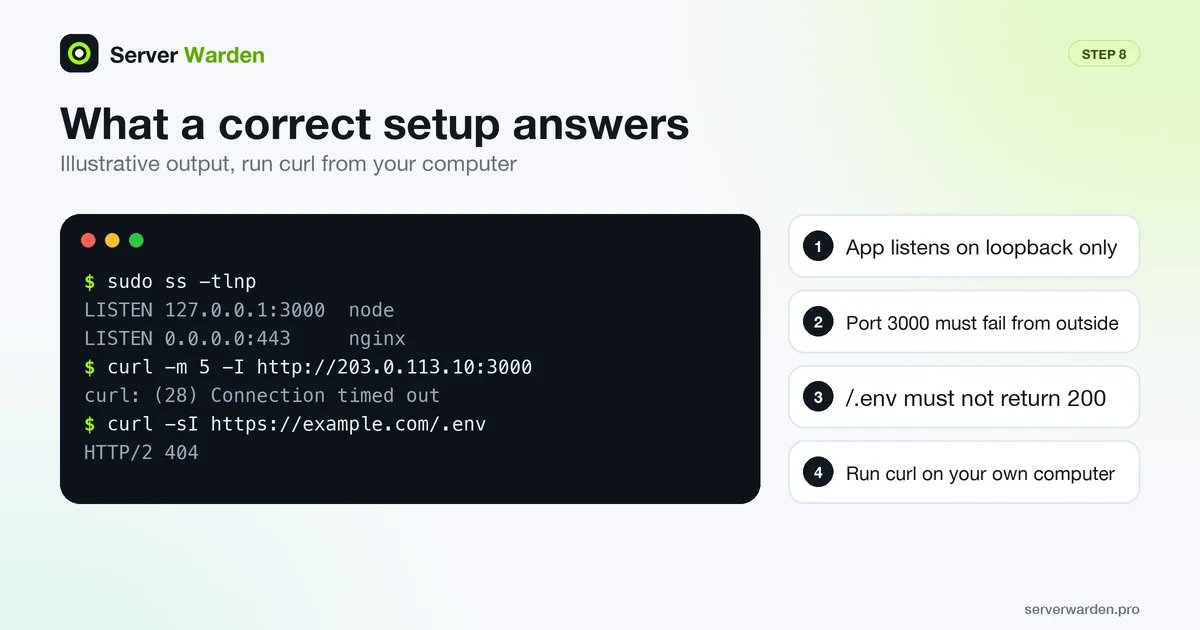
Expect 0.0.0.0:22, :80 and :443 (sshd and nginx), your app on 127.0.0.1:3000, and any database on 127.0.0.1 only (see exposed databases). Then, from your own computer, not the server:
curl -I https://example.com
curl -I http://example.com
curl -m 5 -I http://203.0.113.10:3000
nc -vz -w 5 203.0.113.10 3000
curl -sI https://example.com/.env
curl -sI https://example.com/.git/HEAD- The first call succeeds over valid HTTPS; the second redirects to HTTPS with a 301.
- The app port must fail:
curltimes out andncreports no connection. The firewall drops packets, so expect a timeout. /.envand/.git/HEADmust not return 200. If a catch-all route serves the home page for any path, read the body withcurl -sand check it has noNAME=valuelines orref:text.
Want a second pair of eyes on your server?
A free, read-only check shows what is exposed on your server and what to fix first.
Get your free server check Talk to a security engineerStep 9: Redeploy and roll back safely
Each deploy builds a fresh release folder, switches the current link, restarts and checks the app, while the previous release stays on disk. Save this as /srv/myapp/deploy.sh (run it as deploy):
#!/bin/bash
set -euo pipefail
APP=/srv/myapp
REL=$APP/releases/$(date +%Y%m%d-%H%M%S)
PREV=$(readlink -f $APP/current)
git clone --depth 1 https://github.com/YOUR_ACCOUNT/YOUR_REPO.git "$REL"
cd "$REL" && npm ci && npm run build
ln -sfn "$REL" $APP/current
sudo systemctl restart myapp
sleep 5
if ! curl -fsS -m 5 http://127.0.0.1:3000/ >/dev/null; then
  echo "Health check failed, rolling back to $PREV"
  ln -sfn "$PREV" $APP/current
  sudo systemctl restart myapp
  exit 1
fi
echo "Deployed $REL"
This is a git pull and build into a new folder, so a failed build never touches the running copy. Swap in your Python install line and your own health URL. To roll back by hand:
ls -1t /srv/myapp/releases
ln -sfn /srv/myapp/releases/PREVIOUS_RELEASE /srv/myapp/current
sudo systemctl restart myapp
A rollback does not undo database changes or an edited env file, so back up the database before any migration. Keep the last three to five release folders. Backups of the data itself follow the 3-2-1 backup strategy.
Step 10: What to do next
The server is now a reasonable baseline. Add these layers next:
- Ban repeat offenders with fail2ban.
- Watch the logs.
journalctl -u myappshows your app, and server monitoring and log analysis shows what to alert on. - Write a short incident plan now: detecting and responding to a breach.
If the app holds customer data and nobody owns server security, ask for help early: a free read-only check shows what the internet sees on your server.
More for vibe coders: see the vibe coder security hub for every guide in this series, or tick items off in the interactive checklist.
Frequently asked questions
How do I deploy a Node app on an Ubuntu server securely?
Use a sudo user with SSH keys, a default-deny firewall and automatic updates, then run the app as an unprivileged systemd service bound to 127.0.0.1. Put nginx with HTTPS in front and keep secrets in a 600-permission environment file.
Can I just run npm run dev or flask run on my server?
No. Both start development servers. The Flask documentation says its built-in server is not designed to be secure, stable or efficient, and Next.js documents next build then next start for production.
Why should my app listen on 127.0.0.1 instead of 0.0.0.0?
Address 127.0.0.1 is reachable only from the server itself, so visitors must go through nginx. Listening on 0.0.0.0 accepts connections on every interface and lets them bypass the proxy, which the Flask documentation warns against.
Do I need nginx if my framework already has a web server?
Yes, it is recommended. A reverse proxy handles TLS, malformed requests, slow connections and payload limits, and lets the app run without root on a high port. The Next.js self-hosting guide advises one for these reasons.
Should I run my app as root or with sudo?
No. A bug in an app running as root gives an attacker the whole server. Use a dedicated system user with no login shell, plus systemd options such as NoNewPrivileges and ProtectSystem.
How do I store API keys and passwords on a VPS?
Put them in an environment file such as /etc/myapp/myapp.env, mode 600, loaded with EnvironmentFile= in the systemd unit. Never commit it to Git, and rotate any key that has appeared in a repository or log.
How do I roll back a bad deploy?
Deploy each version into its own release folder behind a current symlink. To roll back, repoint the link at the previous folder with ln -sfn and restart the service. Database changes are not undone, so back up before migrations.
Not sure where your server stands?
Get a free, read-only security check, or talk to a security engineer about managed protection.
Get your free server check Talk to a security engineer