Docker Compose on a VPS: A Secure Setup for Small Apps
Short answer: to run a Docker Compose app on a VPS safely, publish only what your reverse proxy needs and bind it to 127.0.0.1, give the database no published port, keep secrets in files with tight permissions, run the app as a non-root user, pin image versions and test from outside the server. Docker publishes ports around your firewall, so the compose file itself must do the job ufw will not.
Docker Compose starts several containers from one YAML file. AI assistants write that file for a laptop, and it runs unchanged on a server, which is the problem. This is the compose-file layer of the vibe coding security checklist. For the Docker daemon itself (socket, rootless mode, DOCKER-USER) see Docker host security on a VPS.
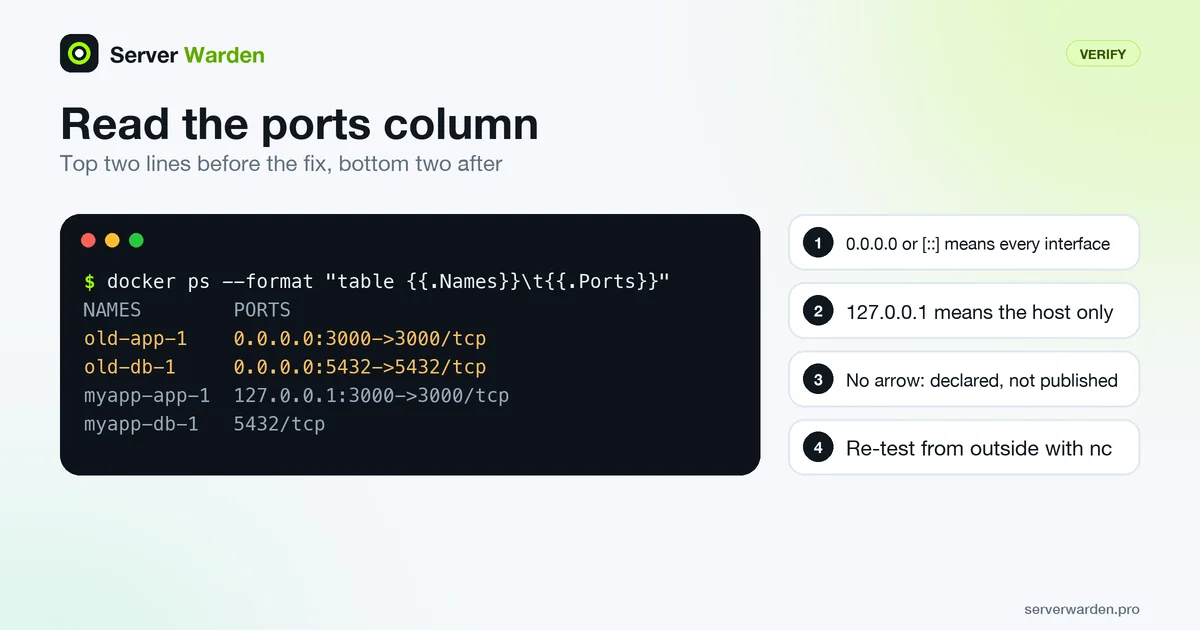
Run docker ps --format "table {{.Names}}\t{{.Ports}}" and look for 0.0.0.0 or [::] in the ports column.
Delete every ports: entry on the database service. See Step 1.
Change "3000:3000" to "127.0.0.1:3000:3000", then run docker compose up -d so the container is recreated.
Replace latest with an exact tag and remove passwords written in the file. See Step 3.
From your laptop run nc -zv -w 3 YOUR_SERVER_IP 5432. It must fail.
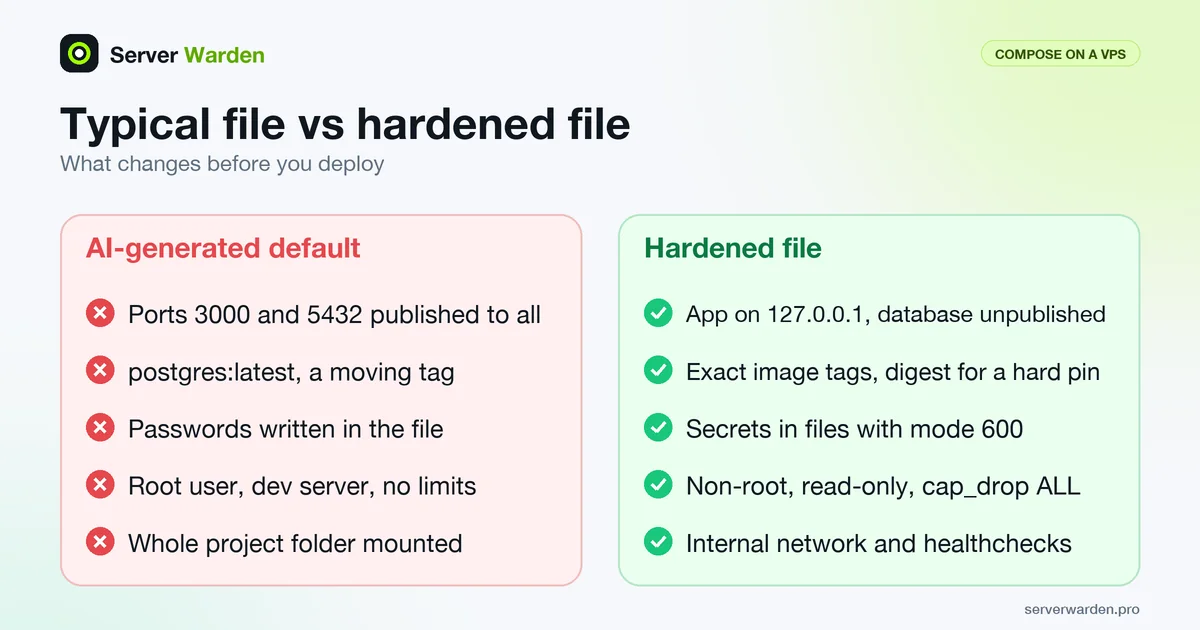
The five changes this guide makes to a typical AI-generated compose file.
Why a laptop compose file is unsafe on a VPS
A laptop compose file favours convenience: every port reachable, short passwords, the source folder mounted, a development server running as root. Three things go wrong on a VPS.
Published ports skip your firewall. A published port is a container port mapped to a host port with ports:. Docker's documentation on packet filtering and firewalls says container traffic is diverted before it reaches ufw rules, and its port publishing page calls publishing insecure by default. A clean ufw status proves nothing here.
Secrets leak sideways into Git, chats and screenshots, and nobody notices a crash loop or a log file that fills the disk.
Each option below says what it does and where it can break your app, so test after every step. To get the app onto the server in the first place, see how to deploy an app to a VPS securely.
A typical AI-generated file, annotated
This is what an assistant writes for "an app with a Postgres database". It works first time, so it gets deployed as is. The numbers match the steps below; the key and password are fake.
services:
  app:
    build: .
    # 1. Development server, not a production start
    command: npm run dev
    ports:
      # 2. No host address: open on every interface, ufw is bypassed
      - "3000:3000"
    environment:
      # 3. Secrets written into the file
      - DB_PASSWORD=password
      - STRIPE_SECRET_KEY=sk_test_EXAMPLE_NOT_A_REAL_KEY
    volumes:
      # 4. The whole project folder (.env, .git), writable
      - .:/app
    # 5. Waits for the database to start, not to be ready
    depends_on:
      - db
    # 6. No user: so it runs as root unless the image says otherwise
  db:
    # 7. A moving tag
    image: postgres:latest
    ports:
      # 8. The database open to the whole internet
      - "5432:5432"
    environment:
      POSTGRES_PASSWORD: password
    volumes:
      # 9. Data folder inside the project directory
      - ./pgdata:/var/lib/postgresql/data
# 10. No healthcheck, log limits, networks or resource limits
Ports 3000 and 5432 are open to the internet (2 and 8), credentials sit in plain text (3), the process runs as root (6) and the database image can change under you (7). The old version: line is not a risk: Compose documents it as obsolete and only warns, so leave it out of new files.
Step 1: Publish only what the proxy needs
In the Compose service reference, the short syntax is [HOST:]CONTAINER. Without a host address the port binds to all interfaces, which the docs note bypasses host firewall rules. expose is different: it only declares ports for linked services, which should not be published to the host.
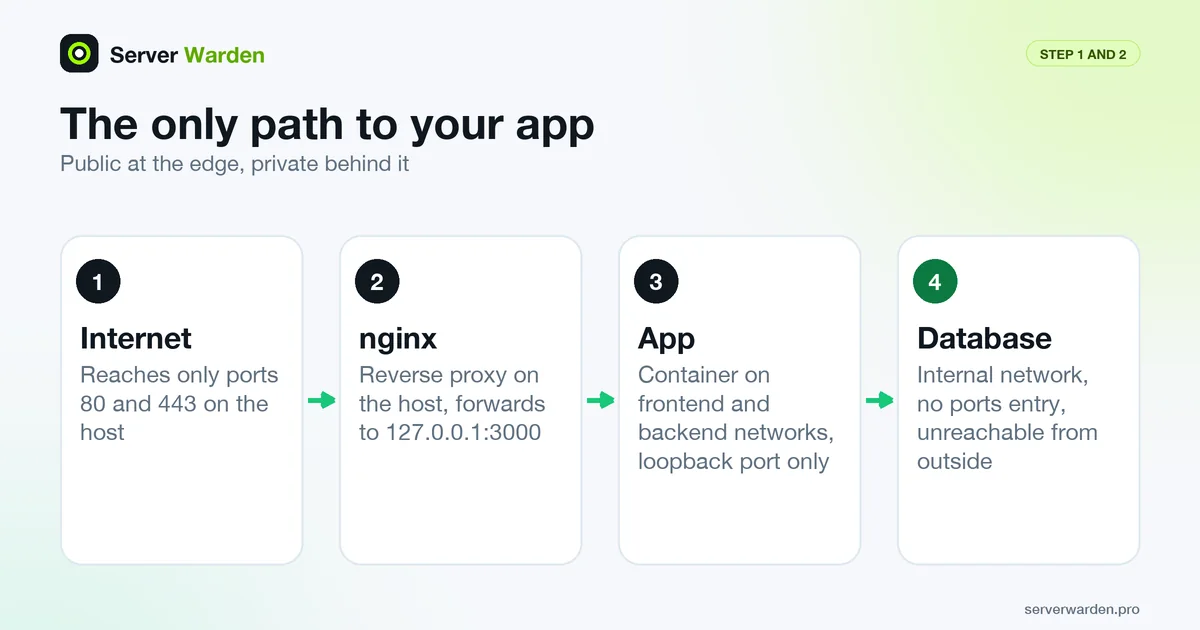
Only nginx faces the internet; the app listens on loopback and the database has no published port.
Remove ports: from the database. Containers on the same network reach it as db:5432. Docker confirms that containers on one bridge network reach each other and that unpublished ports are not reachable from outside the host.
Bind the app to loopback:"127.0.0.1:3000:3000" is host address, host port, container port. Docker says such a port is reachable only from the Docker host. Quote the mapping, as the reference requires, so YAML does not misread it.
Put a reverse proxy on the host in front. nginx listens on 80 and 443 and forwards to the loopback port:
Limit: loopback hides the port from the internet, not from other users or processes on the server, and an edit back to "3000:3000" silently undoes it. Keep ufw on for SSH and everything that is not a container (Linux firewall guide). Databases are the usual victims: exposed databases on a VPS.
Step 2: Put the database on an internal network
With no networks declared, every service joins one implicit default network and finds the others by name, so one compromised container can reach all of them. The OWASP Docker Security Cheat Sheet recommends custom networks holding only the containers that must talk.
Add a backend network with internal: true. The networks reference says this makes an externally isolated network. Attach the database to it alone. The app joins frontend and backend.
Give the database a healthcheck and wait for it.pg_isready reports by exit status whether PostgreSQL accepts connections. With condition: service_healthy the app starts after that; the reference warns that short-form depends_on, which the generated file used, does not wait.
Limit: an internal network also cuts the database off from the internet, so outbound jobs must run elsewhere.
Step 3: Move secrets out of the compose file
A secret is any value that proves your app may do something: a password, an API key, a token. Three places to put one, worst to best:
Inline in the compose file. Avoid it. Also note that docker compose config prints the resolved file, including values from your .env, so do not paste its output into a chat.
env_file, a file of KEY=value lines outside Git. Workable, with a weakness: the values become environment variables, which Docker's secrets guide says are often available to all processes and can be printed in logs.
Compose secrets, a file granted per service and mounted at /run/secrets/NAME. Docker's own advice is to prefer secrets for passwords. See secrets management.
This makes a private folder with a random password, locks both files to your user, and keeps them out of Git and out of any COPY . . in your Dockerfile (.dockerignore excludes files from the build). Put API keys in app.env.
The PostgreSQL image reads POSTGRES_PASSWORD_FILE; the image page lists _FILE support for four variables. Your app reads a file only if its code does. Ask the assistant to read the path in DB_PASSWORD_FILE.
Mind permissions. The reference says uid, gid and mode are ignored for file sources, so the host file's owner and mode decide who can read it. On "permission denied", chown the file to the container user's numeric ID. Never make it world-readable.
Editing the file does not change an existing database. The image page says its variables only act on an empty data directory. Change a live password in PostgreSQL, for example with psql's \password, then update the file.
These options shrink the damage if the app is compromised. None is a guarantee and each can break software not written for it, so add them one at a time and run the app after each.
user: runs the process as a non-root user. The reference says the process runs as root when the image sets no user. Better, set USER in the Dockerfile, as Docker's build best practices advise; the Node image README's own Compose example uses user: 'node'. Limit: files the app writes must belong to that user. Leave the database without user:: the PostgreSQL image page says a numeric user such as 1000:1000 fails when it is not in /etc/passwd.
read_only: true plus tmpfs gives a read-only root filesystem with memory-backed scratch space, a pairing OWASP recommends. Limit: an app that writes uploads, caches or logs to its own disk fails until those folders get a volume or tmpfs, and tmpfs data vanishes when the container stops. The database stays writable: I found no documented read-only recipe for its image.
cap_drop: [ALL] removes Linux capabilities. OWASP calls dropping all and adding back only what is needed the most secure setup. Limit: some images need one back, for instance to bind a port below 1024. Read the error and add only that capability with cap_add. The database keeps Docker's defaults, as I found no documented minimal set for it.
no-new-privileges:true stops container processes gaining new privileges, and OWASP says to always use it. Limit: software relying on setuid programs inside the container breaks.
mem_limit and pids_limit stop a runaway app starving the server. Limit: too low and normal load gets the container killed. Start generous. restart: unless-stopped revives a crashed container but hides a crash loop, so watch the logs.
Never use privileged: true. Docker's run reference says it gives the container all capabilities and access to all host devices. Host-side flags are in the host security guide linked above; the idea behind all of this is least privilege.
The app healthcheck uses wget and a /health route, so both must exist in your image and code.
Step 5: Pin, scan and update images safely
Pinning means naming an exact version so a rebuild cannot silently change it. Docker's build guide says image tags are mutable and that pinning to a digest (a content hash) fully secures the supply chain. The Compose image format is [<registry>/][<project>/]<image>[:<tag>|@<digest>].
Replace latest with an exact tag such as postgres:18.6-alpine, which the image page listed when this was written. Pin the FROM line in your Dockerfile too.
For a hard pin, read the digest from docker images --digests and append it to the tag after an at sign.
Scan before deploying.docker scout cves IMAGE lists known vulnerabilities, and OWASP also names Trivy and Grype. I could not confirm from the docs whether Docker Scout needs a Docker account, so check its page.
To update on purpose:
Take a database dump first (Step 6).
Edit the tag. For a database, a major version change needs its own plan, so read the release notes first.
Run docker compose pull, then docker compose up -d. Compose recreates changed containers and keeps mounted volumes.
Run docker compose ps and docker compose logs --tail 50 app. Expect healthy and a quiet log.
To roll back, restore the old tag and run docker compose up -d again. Data stays in the volume.
Use a named volume for database data. The image page says PostgreSQL 17 and older keep data in /var/lib/postgresql/data and 18 and newer use /var/lib/postgresql. A wrong path means data is not kept when the container is recreated.
Know what deletes data.docker compose down keeps named volumes, docker compose down -v removes them. Do not run the second on production by habit.
Dump the database and test the restore. A volume is not a backup. The image trusts local socket connections inside the container, so no password prompt appears:
What not to mount. Docker's documentation says bind mounts can write to the host by default and have security implications, so add :ro where the app only reads.
/var/run/docker.sock. OWASP: it is equivalent to unrestricted root access to the host, and a read-only mount does not make the API read-only. See Docker socket.
/, /etc, /root or a home directory. The container could change them, SSH keys included.
The project folder (.:/app). It exposes .env and .git inside the container. Build the code into the image instead.
The hardened compose file
All six steps in one file. Save it as compose.yaml, create the two files from Step 3 and run docker compose up -d. The app image comes from your Dockerfile, which needs a pinned FROM and USER node.
services:
  app:
    build: .
    command: ["node", "server.js"]         # production start
    ports:
      - "127.0.0.1:3000:3000"              # only the host (nginx) can reach it
    env_file:
      - ./app.env                          # API keys, chmod 600, not in Git
    environment:
      DB_PASSWORD_FILE: /run/secrets/db_password   # your code reads this file
    secrets:
      - db_password
    user: node                             # non-root user from the Node image
    read_only: true                        # read-only root filesystem
    tmpfs:
      - /tmp                               # scratch space in memory
    cap_drop:
      - ALL                                # add back only what an error asks for
    security_opt:
      - no-new-privileges:true
    mem_limit: 512m
    pids_limit: 200
    restart: unless-stopped
    healthcheck:
      test: ["CMD", "wget", "-q", "--spider", "http://127.0.0.1:3000/health"]
      interval: 30s
      timeout: 5s
      retries: 3
    depends_on:
      db:
        condition: service_healthy         # wait until the database is ready
    networks: [frontend, backend]
    logging: { driver: json-file, options: { max-size: "10m", max-file: "3" } }

  db:
    image: postgres:18.6-alpine            # exact tag, no "ports:" at all
    environment:
      POSTGRES_USER: app
      POSTGRES_DB: appdb
      POSTGRES_PASSWORD_FILE: /run/secrets/db_password
    secrets:
      - db_password
    volumes:
      - dbdata:/var/lib/postgresql         # PostgreSQL 18 and newer, see Step 6
    restart: unless-stopped
    healthcheck:
      test: ["CMD-SHELL", "pg_isready -U app -d appdb"]
      interval: 10s
      timeout: 5s
      retries: 5
    networks: [backend]                    # internal only
    logging: { driver: json-file, options: { max-size: "10m", max-file: "3" } }

networks:
  frontend: {}
  backend:
    internal: true                         # no route to the outside world

volumes:
  dbdata:

secrets:
  db_password:
    file: ./secrets/db_password.txt
The user, health route, memory limit and password-file support are specific to your app. If a container will not start, remove the newest hardening line, read the error and add back only what it names. For getting these edits from your assistant, see security rules for your AI coding assistant.
Verify it from inside and outside the server
Do not trust the file, check the result after every docker compose up -d.
Illustrative output: the two highlighted lines are the exposure to fix.
A published port shows an address and an arrow, and 0.0.0.0 or [::] means every interface. A bare 5432/tcp is only a port the image declares: the Dockerfile reference says EXPOSE does not publish it.
Read what listens on the host.sudo ss -tlnp should show 127.0.0.1:3000 and no 5432.
Test from another machine, against your own server only, with the documentation address replaced by yours:
-z checks for a listener without sending data, -v prints the result and -w 3 gives up after three seconds. 3000 and 5432 must fail, 443 must succeed. Never scan servers you do not own or have permission to test.
If a closed port answers, you probably edited the file without recreating the container, so run docker compose up -d again. If it still answers, look for an override compose file or a container started by hand with docker run -p.
The whole checklist on one screen
No ports: on the database; the app on 127.0.0.1 behind nginx with HTTPS.
Database on an internal: true network with a healthcheck.
No passwords in the compose file; app.env and secret files mode 600, ignored by Git and builds.
Non-root user and no-new-privileges; read_only and cap_drop: [ALL] where the app tolerates them.
Data in a named volume, dumps off the server, log rotation on, nothing sensitive mounted.
Verified with docker ps, ss -tlnp and nc from outside after every change.
What to do next: continue with the VPS security checklist (SSH, firewall, updates). If the server already ran the "before" file, treat the database password and keys in it as exposed, rotate them and read how to detect and respond to a breach.
Not for published ports. Docker documents that container traffic is diverted before it reaches ufw rules, so a port published with ports: stays reachable even when ufw denies it. Bind private services to 127.0.0.1 or publish nothing, and confirm from outside the server.
What is the difference between ports and expose in Docker Compose?
ports publishes a container port on the host, on all interfaces unless you give an address. expose only declares a port for other containers and does not publish it. Containers on one Compose network already reach each other by service name.
How do I keep PostgreSQL in Docker Compose private?
Give the database service no ports entry, attach it to a network marked internal: true and let only the app join that network. The app reaches it at db:5432 and nothing on the internet can.
Are environment variables safe for secrets in Docker Compose?
They are the weaker option. Docker advises against passing passwords as environment variables because many processes can see them and they can end up in logs. Use Compose secrets where the software can read a file, and a protected env_file (mode 600, not in Git) where it cannot.
Should I use the latest tag in production?
No. Tags are mutable, so latest can point at a different image the next time you pull. Use an exact version tag, add a digest for the strictest pin and update on purpose after taking a database dump.
Why did my container break after I added read_only or cap_drop?
The app probably writes to disk or needs a capability you removed. Read the error, give the writable folder a volume or tmpfs, or add back only the one capability named with cap_add. Add hardening options one at a time.
How do I update a Docker Compose app without losing data?
Dump the database, change the image tag, then run docker compose pull and docker compose up -d. Compose recreates changed containers and keeps volumes. Never use docker compose down -v on production, because it removes named volumes.
Not sure where your server stands?
Get a free, read-only security check, or talk to a security engineer about managed protection.