Published 2026-10-27 · Updated 2026-10-27
Firebase Security Rules Checklist: Firestore and Storage
Short answer: Firebase security rules are the only thing that stops a stranger from reading or changing your Firestore, Cloud Storage or Realtime Database data from a browser. To secure an app, replace test-mode and if true rules with owner-only rules, check the shape of incoming data, keep the Admin SDK on the server, restrict your API keys, turn on App Check and test every rule in the emulator before you deploy.
Firebase lets a web or mobile app talk straight to the database, with no server of yours in between. That is why vibe-coded Firebase apps are often left wide open: the app works, so nobody looks at the rules. This page is the Firebase-specific part of the vibe coding security checklist. Vibe coding means building with an AI assistant and shipping what it writes.
In this article
What Firebase security rules are and what they protect Step 1: Replace test mode and open rules Step 2: Write owner-only rules for Firestore Step 3: Check the shape of incoming data Step 4: Lock down Cloud Storage files Step 5: Realtime Database rules cascade Step 6: Know which Firebase keys are secret Step 7: Add App Check and spending alerts Step 8: Test the rules before you deploy The whole checklist on one screen Frequently asked questionsQuick win (20 minutes)
- Open the Rules tab of Firestore, Storage and Realtime Database and search for
if true,".read": trueorallow read, write;. Replace each one. See Step 1. - If your project has a Firebase CLI setup, find the rules files named in
firebase.json, because deploying from the CLI overwrites rules edited in the console. - Check whether any rule is only
request.auth != null. That lets every signed-in user read everything. - In the Google Cloud console, open the API keys list and confirm your browser key lists only Firebase APIs, and that no Gemini or other paid-API key is in your frontend code.
- Open the Rules Playground, choose an unauthenticated request and try to read a private collection. It must be denied.
What Firebase security rules are and what they protect
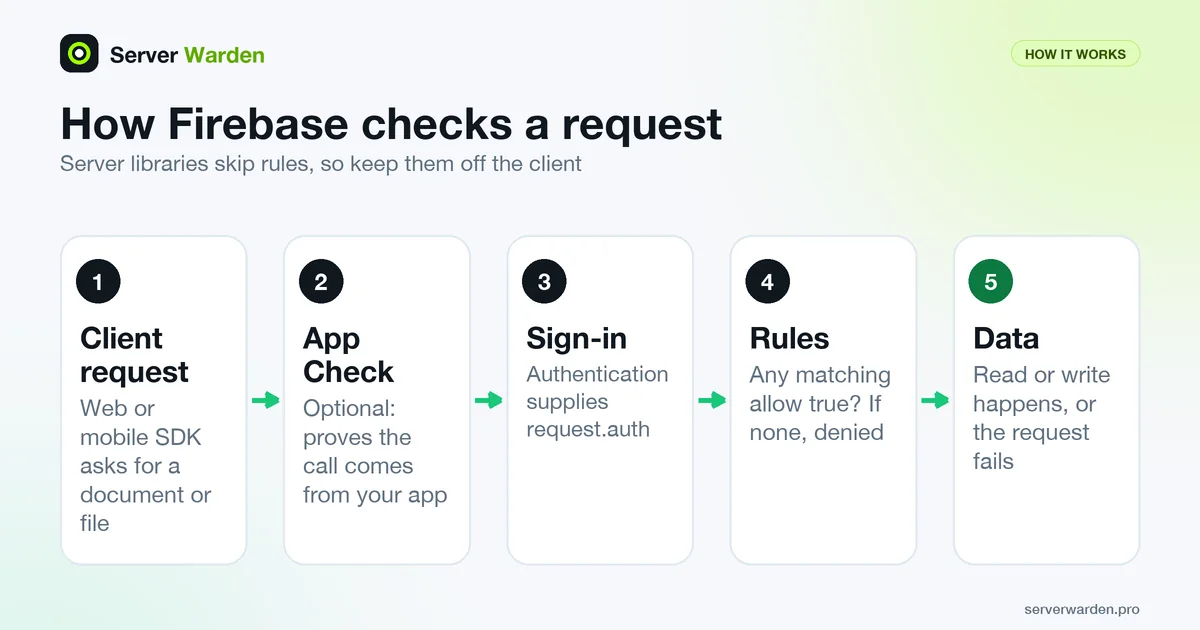
Firebase Security Rules are conditions, written in a small rules language, that Firebase evaluates on its own servers before it reads or writes your data. According to the Firestore rules documentation, every request from a mobile or web client library is checked against the rules first, and if the rules deny any of the requested document paths, the whole request fails. The same system covers Cloud Firestore, Cloud Storage for Firebase and the Realtime Database, each with its own rules.
The key idea: code in your frontend belongs to the visitor. They can open the developer tools and send any request your app could send, or one it never would. A hidden button or a check in your JavaScript is not protection. Rules run where the visitor cannot edit them.
Two exceptions matter. Firebase documents that server client libraries for Firestore bypass all Security Rules and authenticate through Google Application Default Credentials instead. For the Realtime Database, the Admin SDK can run with full administrative privileges, which the docs describe as complete read and write access. So the Admin SDK and service account credentials are powerful and belong only on a server you control (see deploying an app to a VPS securely), never in the app that visitors download.
Step 1: Replace test mode and open rules
When you create a database or storage bucket in the Firebase console, you choose a starting mode. Per the Firestore quickstart, test mode is "good for getting started" with client libraries "but allows anyone to read and overwrite your data". Production mode denies all reads and writes from mobile and web clients. The rules basics page calls these Locked mode and Test mode. In Locked mode, Firestore and Realtime Database deny everyone, and Cloud Storage lets only authenticated users in.
Test mode is meant for a first afternoon, not for a launch. The documentation pages I reviewed do not state a default expiry period, so do not count on one: read your own rules. If you see a date condition built on request.time, that is an expiry someone wrote, and after that date requests are denied. Do not "fix" the resulting permission errors by moving the date or by switching to if true. Write real rules instead.
The pattern to hunt for, from Firebase's insecure rules page:
// Firestore: NEVER use this in production
match /{document=**} {
  allow read, write: if true;
}
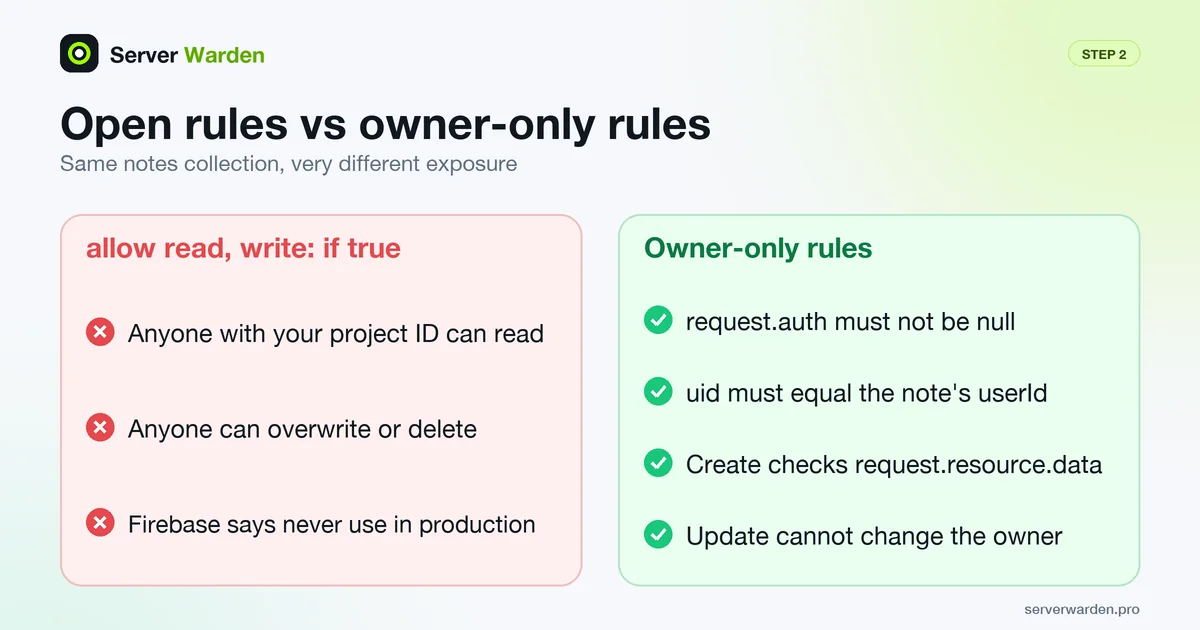
Firebase's own warning is blunt: never use this rule set in production, because it allows anyone to overwrite your entire database. The page adds that anyone who guesses your project ID can steal, modify or delete the data. The equivalents are ".read": true and ".write": true in the Realtime Database, and allow read, write; with no condition in Cloud Storage.
- Search all three rules files for open access. If you manage rules from the Firebase CLI, the files are named in
firebase.json. The docs warn that a CLI deploy overwrites whatever is in the console, so edit one source only. - Treat "any signed-in user" as open too. Firebase lists
request.auth != null(Storage),request.auth.uid != null(Firestore) andauth.uid !== null(Realtime Database) as not recommended for private data, because every logged-in user then gets access to everything. Firebase Authentication also supports anonymous sign-in, and the Rules Playground lets you test as an anonymous user, so a plain sign-in check may be weaker than you think. - Heed the alert. If you receive a message that your Firestore database is not properly secured, Firebase says to resolve it by modifying and testing your rules, not by dismissing it.
- Closed is a valid start. Rules that deny everything are documented as suitable when the database is used by a server only. Then test that your clients still get the data they need.
Step 2: Write owner-only rules for Firestore
The most common safe pattern is content-owner-only access: a person can read and change only the documents they created. For a notes app where every document stores the owner in a userId field, Firebase's documented building blocks give this. request.auth holds the identity of the signed-in user, resource.data holds the fields of the document already stored, and request.resource.data holds the document as it would look after the write.
rules_version = '2';
service cloud.firestore {
  match /databases/{database}/documents {
    match /notes/{noteId} {
      // Read or delete only your own notes
      allow read, delete: if request.auth != null
                          && request.auth.uid == resource.data.userId;

      // Create: no stored document yet, so check the incoming data
      allow create: if request.auth != null
                    && request.auth.uid == request.resource.data.userId;

      // Update: you must own it now, and you cannot hand it to someone else
      allow update: if request.auth != null
                    && request.auth.uid == resource.data.userId
                    && request.resource.data.userId == resource.data.userId;
    }
  }
}
Why create is separate: on a new document there is nothing stored yet, so a rule that reads resource.data.userId has nothing to compare. Firebase documents create as applying to writes to nonexistent documents, which is why the check uses request.resource.data. The update rule follows Firebase's "ownership preserved on update" pattern: both the old and the new owner must be the current user.
- Remember that rules are not filters. Firebase states that a query must itself include constraints that guarantee every result passes the rule. For the notes above, query with
where("userId", "==", uid), or the whole query is rejected. - Rules do not inherit into subcollections. Security rules apply only at the matched path, so a subcollection needs its own
matchblock. - Beware overlapping matches. When several
allowrules match the same document, access is allowed if any condition is true. One forgotten catch-allmatch /{document=**}withif trueundoes everything above it. - Split public and private on purpose. Firebase documents a mixed pattern: public reads with
allow read: if truefor content meant to be public, and writes only for the owner. Never apply it to a collection that holds personal data.
If you use Postgres through Supabase instead, the same idea is called row-level security and has its own checklist.
Step 3: Check the shape of incoming data
Ownership says who may write. Data validation says what they may write. Firebase documents that rules can restrict writes based on the new data being written, using request.resource.data. Three documented examples, all useful on a notes or profile collection:
// Refuse documents that contain a field the user must never set
allow create: if !("ranking" in request.resource.data);

// Require a positive number and an unchanged name on update
allow update: if request.resource.data.population > 0
              && request.resource.data.name == resource.data.name;
Apply the same idea to anything an attacker would like to set on their own record: an isAdmin or role field, a price, a credit balance, an approved flag. If the client should never write it, the rule should refuse a write that contains it. Better still, keep such values in a collection that only your server can write.
- List the fields a user may write and refuse writes that add others.
- Keep roles and money out of user-writable documents. Firebase documents role-based access through a lookup of a users document with
get(). The roles document itself must not be writable by the user it describes. - Ask your AI assistant to explain every rule in plain words, and test what it says with the tools in Step 8. The assistant's rules are only as good as its prompt. See security rules for AI coding assistants.
Step 4: Lock down Cloud Storage files
Cloud Storage for Firebase has its own rules, separate from Firestore. According to the Storage rules documentation, the default rules require Firebase Authentication for any read or write, and an unauthenticated request has request.auth set to null. That default is better than open, but it still lets every signed-in user touch every file. Scope each path to its owner and add limits on size and type, as in Firebase's user security and data validation examples:
rules_version = '2';
service firebase.storage {
  match /b/{bucket}/o {
    match /users/{userId}/{fileName} {
      allow read: if request.auth != null
                  && request.auth.uid == userId;

      // Images only, under 5 MB (size is in bytes)
      allow create, update: if request.auth != null
                            && request.auth.uid == userId
                            && request.resource.size < 5 * 1024 * 1024
                            && request.resource.contentType.matches('image/.*');

      allow delete: if request.auth != null
                    && request.auth.uid == userId;
    }
  }
}- Put files under a per-user path such as
users/{userId}/...so the rule can compare the path torequest.auth.uid. - Limit size and content type with
request.resource.sizeandrequest.resource.contentType. Without them one user can fill the bucket with huge files, which also costs you money. - Break write into create, update and delete when the conditions differ. Firebase documents these granular operations for Storage, and read splits into
getandlistin rules version 2. - Remember the OR rule. If several matches cover one file, the request is allowed when any rule passes. A broad
/{allPaths=**}rule can cancel the careful ones.
Want a second pair of eyes on your server?
If your Firebase app also talks to a backend on a VPS, a free read-only check shows what is exposed on that server and what to fix first.
Get your free server check Talk to a security engineerStep 5: Realtime Database rules cascade
If you use the Realtime Database, its rules are JSON and behave differently from Firestore. The core syntax page explains that .read and .write rules cascade: if a rule grants access at a path, it also grants access to every child node, and a deeper rule cannot take that access back. Their example sets a .read condition on /foo and .read: false on /foo/bar, and the second rule is ignored because read was already allowed.
The practical rule: grant little at the top and add access at deeper paths, never the other way round. A single ".read": true at the root makes every rule below it irrelevant. An owner-only layout looks like this:
{
  "rules": {
    "users": {
      "$uid": {
        ".read": "auth.uid === $uid",
        ".write": "auth.uid === $uid"
      }
    }
  }
}- Keep the root closed: no
.reador.writeat the top level unless the whole database really is public. - Rules are not filters here either. Rules apply atomically: reading a parent path fails completely if no rule at that path or above grants access, even when some children would be readable.
- Use
.validatefor structure and format, and remember that all validate rules must pass at every level.
Step 6: Know which Firebase keys are secret
Vibe coders often panic when they see apiKey in their frontend code, or ignore a real secret sitting next to it. Firebase's page on API keys for Firebase sorts them out. API keys for Firebase services only identify your project and app. They are not used to control access to your data: that is done by Security Rules (which users) and App Check (which apps). Firebase says restricted Firebase keys do not need to be treated as secrets and are safe in code or checked-in config files, as long as you follow its guidelines.
That statement has conditions, and they are the checklist:
- The Firebase browser key is for Firebase only. In the Google Cloud console, its API restrictions should list only Firebase-related APIs. Firebase warns that with "Don't restrict key" selected, a key can access any API enabled for the project.
- Use a separate, restricted key for any other Google API. Never put the Gemini Developer API in the allowlist of a publicly accessible key. Firebase says a Gemini Developer API key must never be included in your code or configuration files.
- Tighten the sign-in quota if you use password sign-in. A key found by a stranger cannot read rule-protected data, but it can be used to call the Authentication endpoints. Firebase suggests lowering the default quota of the
identitytoolkit.googleapis.comendpoints to match your normal traffic, to blunt brute-force attempts. - Treat the service account JSON as a true secret. The Admin SDK setup page says to generate a private key file in JSON format and store it securely. Anyone with that file has server-level power over your project, and Firestore server libraries bypass rules entirely.
On a server, give the Admin SDK its credentials through the environment variable the docs name, and keep the file out of your repository and readable only by the app user:
export GOOGLE_APPLICATION_CREDENTIALS="/etc/myapp/service-account.json"
chmod 600 /etc/myapp/service-account.json
The first line tells the Admin SDK where to find the file. The second makes it readable by its owner only. Never commit the file; see secrets management, environment variables and exposed .env and .git files. If a service account key or a Gemini key does leak, follow what to do about a leaked API key: revoke and replace it, do not just delete the file.
Step 7: Add App Check and spending alerts
App Check is a Firebase service that checks that a request comes from your genuine app on a genuine device, before it reaches your backend. The App Check documentation says it works with Cloud Firestore, the Realtime Database, Cloud Storage for Firebase, callable Cloud Functions, Firebase AI Logic and more. Once you enable enforcement, requests without a valid attestation are rejected. On the web it uses reCAPTCHA Enterprise; on Apple and Android platforms it supports providers such as App Attest and Play Integrity.
Be realistic about what it does. Firebase says App Check prevents some, but not all, abuse vectors and does not guarantee the elimination of all abuse. It also complements, not replaces, Authentication and rules: Authentication tells you who the user is, App Check tells you the call comes from your app. It protects you from scripts that use your project without your app, which is the same worry behind rate limiting and DDoS protection. Watch the Usage tab of each product daily at first, and see server monitoring and log analysis for the habit.
- Turn on App Check for the Firebase products you use, and look at the request metrics before you enforce, so you do not lock out your own real users.
- Set a budget alert. Per Firebase's billing guidance, alerts-only budgets send email at your thresholds but do not pause services. Spend caps that pause a service exist only for a few products (Firebase AI Logic, App Hosting, Cloud Functions for Firebase and Extensions), not for Firestore or Storage. Upgrading to the Blaze plan prompts you to create an alerts-only budget.
- Cap your queries. Firebase lists forgetting to add a limit to a query with millions of results as a common cause of unexpected usage.
Step 8: Test the rules before you deploy
Rules are code, and untested rules are guesses. Firebase gives you two tools. The quick one is the Rules Playground in the console, which the docs describe for testing a read or write at a path, as an unauthenticated user, an anonymous user or a specific user ID. Firebase itself recommends the local emulator for more thorough testing. Install it and start the Firestore emulator with the Firebase CLI:
firebase setup:emulators:firestorefirebase emulators:start --only firestore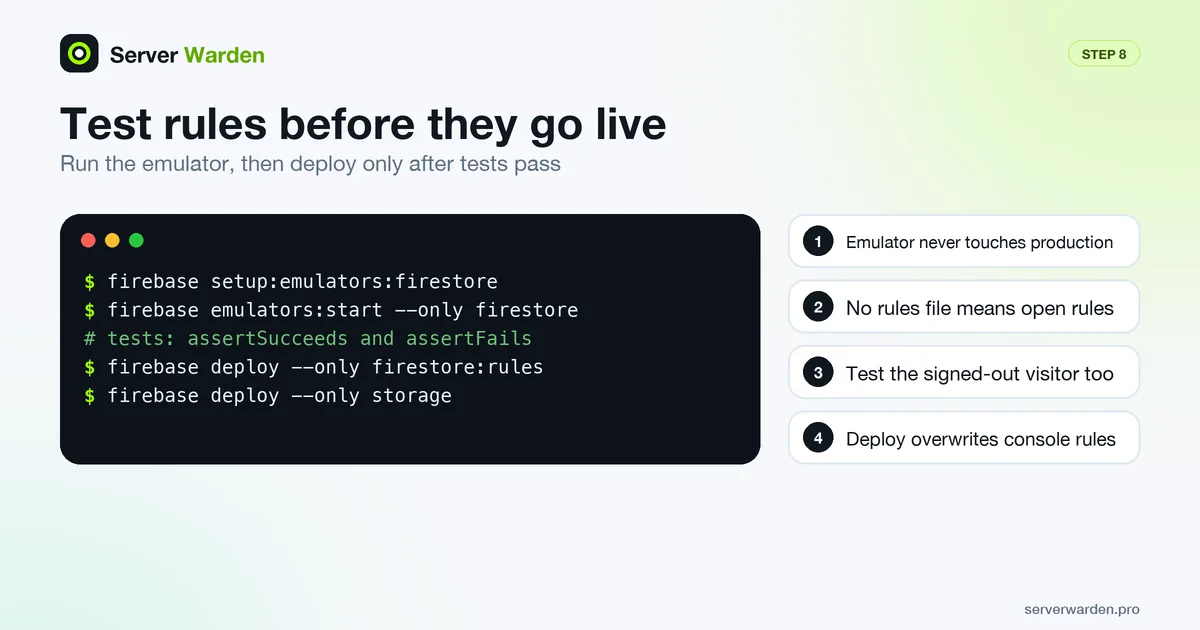
The first command downloads the emulator. The second runs it on your machine, so tests never touch production data. One trap from the docs: if you do not give the emulator a rules file (the firestore.rules field in firebase.json), it treats all projects as having open rules, so a green test can mean nothing.
For repeatable tests, Firebase ships the @firebase/rules-unit-testing library. It can pretend to be a signed-in or a signed-out user, and Firebase notes that it always uses the emulators and never touches production. A sketch with the notes rules from Step 2:
const alice = testEnv.authenticatedContext('alice');
const bob = testEnv.authenticatedContext('bob');

// Alice can create her own note
await assertSucceeds(setDoc(doc(alice.firestore(), 'notes/n1'),
  { userId: 'alice', title: 'hello' }));

// Bob cannot read it, and a signed-out visitor cannot either
await assertFails(getDoc(doc(bob.firestore(), 'notes/n1')));
await assertFails(getDoc(doc(testEnv.unauthenticatedContext().firestore(), 'notes/n1')));
Always include the negative tests: the other user, the signed-out visitor, a write that adds an isAdmin field, a Storage upload over the size limit. Deploy only when they pass. Firebase documents these CLI commands for deployment, one per product:
firebase deploy --only firestore:rules
firebase deploy --only database
firebase deploy --only storage
After deploying, repeat the check an attacker would make: open your app signed out, then signed in as a second test user, and try to read the first user's data. If something is wrong and you suspect someone already copied your data, switch to breach response: lock the rules first, then rotate keys. If you want a second pair of eyes on the server side of your stack, compare managed security with doing it yourself.
The whole checklist on one screen
- No
if true,".read": trueor condition-freeallow read, write;anywhere. - No rule that is only "signed in" for private data.
- Test mode replaced; no stray
request.timeexpiry left in the file. - Firestore: owner check on read, create (via
request.resource.data), update and delete. - Users cannot write roles, prices or admin flags on their own documents.
- Storage: per-user paths, size and content type limits, no catch-all match.
- Realtime Database: root closed, access added at deeper paths,
.validatein place. - Firebase browser key restricted to Firebase APIs; no Gemini or other paid key in the frontend.
- Service account JSON and Admin SDK only on the server, outside Git.
- App Check enabled; budget alerts set; queries have limits.
- Rules tested in the emulator with negative cases, then deployed from one source.
More for vibe coders: see the vibe coder security hub for every guide in this series, or tick items off in the interactive checklist.
Frequently asked questions
What are Firebase security rules?
They are conditions that Firebase checks on its servers before a client app can read or write data in Firestore, Cloud Storage or the Realtime Database. Every request from a web or mobile client library is evaluated, and if the rules deny it, it fails. They replace the access checks you would otherwise write on your own server.
Is Firebase test mode safe to keep?
No. Firebase describes test mode as good for getting started but allowing anyone to read and overwrite your data. Use it only with throwaway data, then replace it with rules that check request.auth and ownership before you share the app.
Why does my Firebase app suddenly say permission denied?
One common cause is a date condition in the rules, built on request.time, that has now passed. The documentation pages I reviewed do not state a default test mode period, so read the dates in your own rules file. Fix it with real owner-based rules, not by extending the date or by using if true.
Is the Firebase API key a secret?
Not in the way a server key is. Firebase says API keys for Firebase services only identify your project, and that access is controlled by Security Rules and App Check, so restricted Firebase keys are safe in code. Service account JSON files, Admin SDK credentials and any Gemini Developer API key are secrets and must stay out of your frontend.
What does allow read, write: if true do?
It lets anyone on the internet who knows your project ID read, change and delete everything covered by that match. Firebase says never to use it in production. Replace it with a rule that checks request.auth and that the user owns the document.
Do security rules apply to the Admin SDK?
No. Firebase documents that server client libraries for Firestore bypass all Security Rules and use Google Application Default Credentials, and that the Realtime Database Admin SDK can have complete read and write access. Keep that code and its credentials on your server only.
How can I test Firebase rules without deploying them?
Use the Firebase Local Emulator Suite with the rules unit testing library, which simulates signed-in and signed-out users and never touches production. For a quick manual check, the Rules Playground in the console lets you test a read or write as an unauthenticated, anonymous or specific user.
Not sure where your server stands?
Get a free, read-only security check, or talk to a security engineer about managed protection.
Get your free server check Talk to a security engineer